

overview
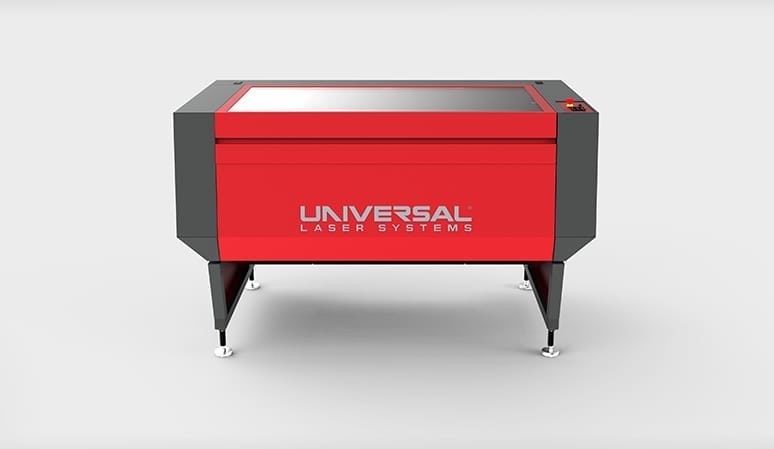
The Fabrication Lab laser cutting service is available to the campus community. The laser cutter can etch or cut soft materials like plastic, paper, wood, cloth or leather, and can etch into the surface of harder materials like glass or stone. We have staff available who can consult with you about strategies for designing your file, choice of materials and general planning for your laser cutting project. All artwork is prepared by users of the service as we do not offer file preparation as part of our operation.
policies
Process to Have Material Laser Cut
1. Prepare an Adobe Illustrator file. See the tutorial page preparing a file for the laser cutter.
2. Fill out a job sheet, and email to fablab@arts.ucla.edu
3. Drop off material, if you are providing, at the fourth floor print desk at Broad Art Center.
4. Wait for an email confirmation, and then pickup cut material at the Broad Art Center,
or,
5. Drop by the Fab Lab during open lab hours.
Please email the completed form to fablab@arts.ucla.edu
Fees
We charge $1 per minute of cutting time, plus a $5 setup fee. Setup includes up to 15 minutes of preparation and test cutting. Longer setups will be charged at $20 per hour in 15 minute increments. Jobs will be charged to your BAR account if you are a DMA student, and are payable by check for all other students.
Faculty and UCLA departments can provide a 13 digit FAU and financial manager contact for payment from a UCLA account. State funds only please, we cannot accept Federal funds or grants.
The FabLab also sells materials for laser-cutting–check the Laser Materials Inventory to see what materials we have in stock.
Checklist for submitting files
Submit files for cutting as Adobe Illustrator .ai files and pay attention to the following formatting:
- Make sure all strokes are 0.001 inches.
- Make sure your document is in RGB Color Mode (File > Document Color Mode…)
- Make sure there are no transparencies (Opacity = 100%)
- Stroke all brush paths and create a black fill for the outlines.
- Avoid using clipping paths, they are unpredictable.
- Outline all fonts (Type > Create Outlines).
- Make sure to align your stokes to center.
- Be sure to turn off PDF compatibility when saving your file.
- Make sure scaling is set to “Do not scale” in File->Print options. We will cut your file with the scaling you specify.
- Keep the art board at 48 x 24 inches, even if your material is smaller. You should make objects to represent your material and position them near the upper left of the art board.
- If your job is complex or confusing, it never hurts to include a diagram, photo, or sketch of the assembled design for reference.
- Leave a minimum of 0.125″ of space between your artwork and edge of the art board. We cannot cut on the edge or from edge to edge of the material.